Gait analysis from one phone video.

Walkfigure takes an ordinary video of someone walking past a phone. It finds the body’s keypoints, measures the hip, knee, ankle and trunk angles and the timing of every step, and shows the walk as a 3D figure you can turn, step through frame by frame, and stand beside a typical walker — with Somi, an assistant that reads the numbers with you. The video is analysed on your own computer. It is not uploaded.

Research software — beta Free to download

Walkfigure is research software in beta. It is not a medical device, it does not diagnose, and it does not recommend treatment. Its numbers are estimates to check against the video, not measurements to rely on.

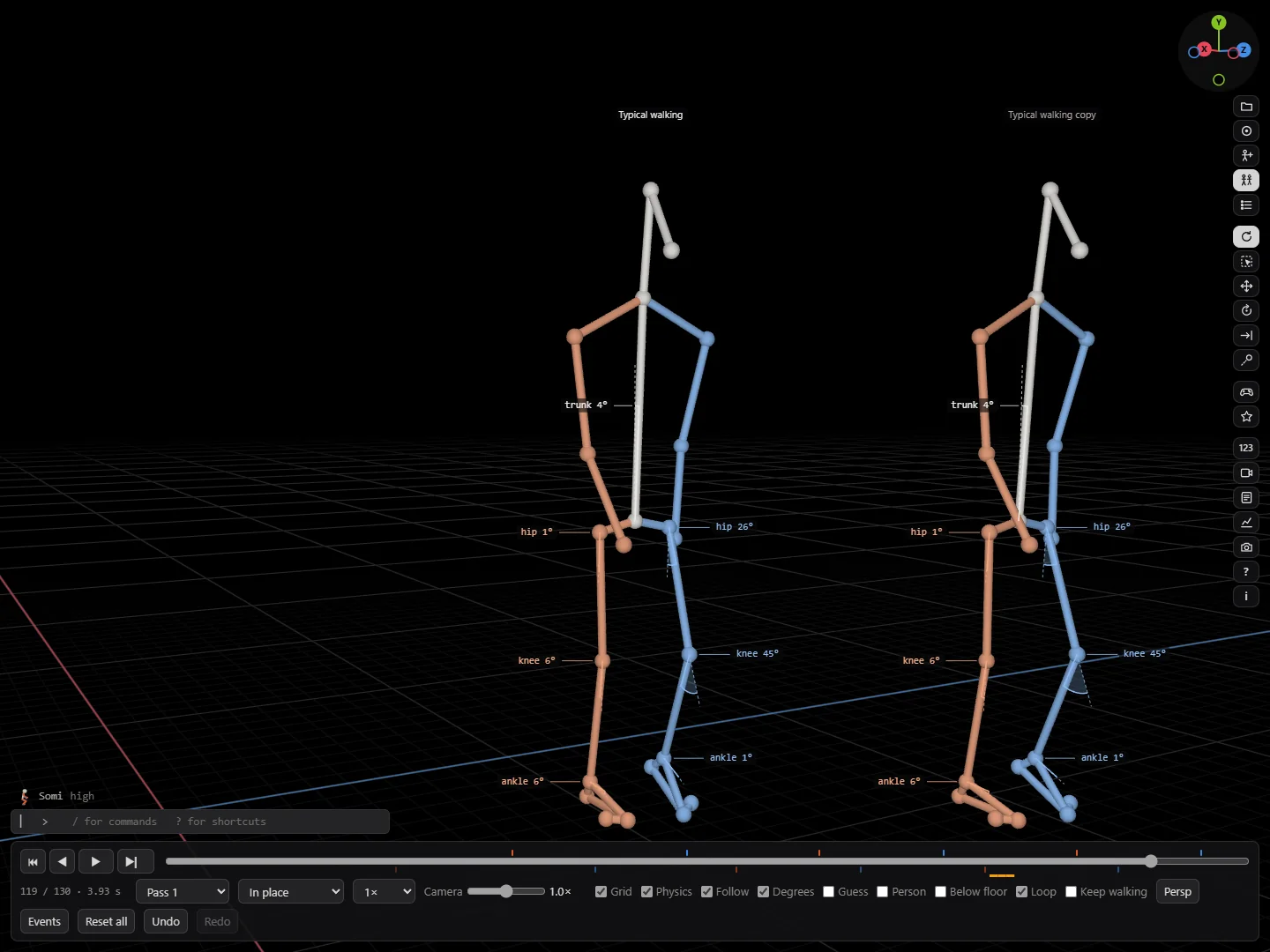
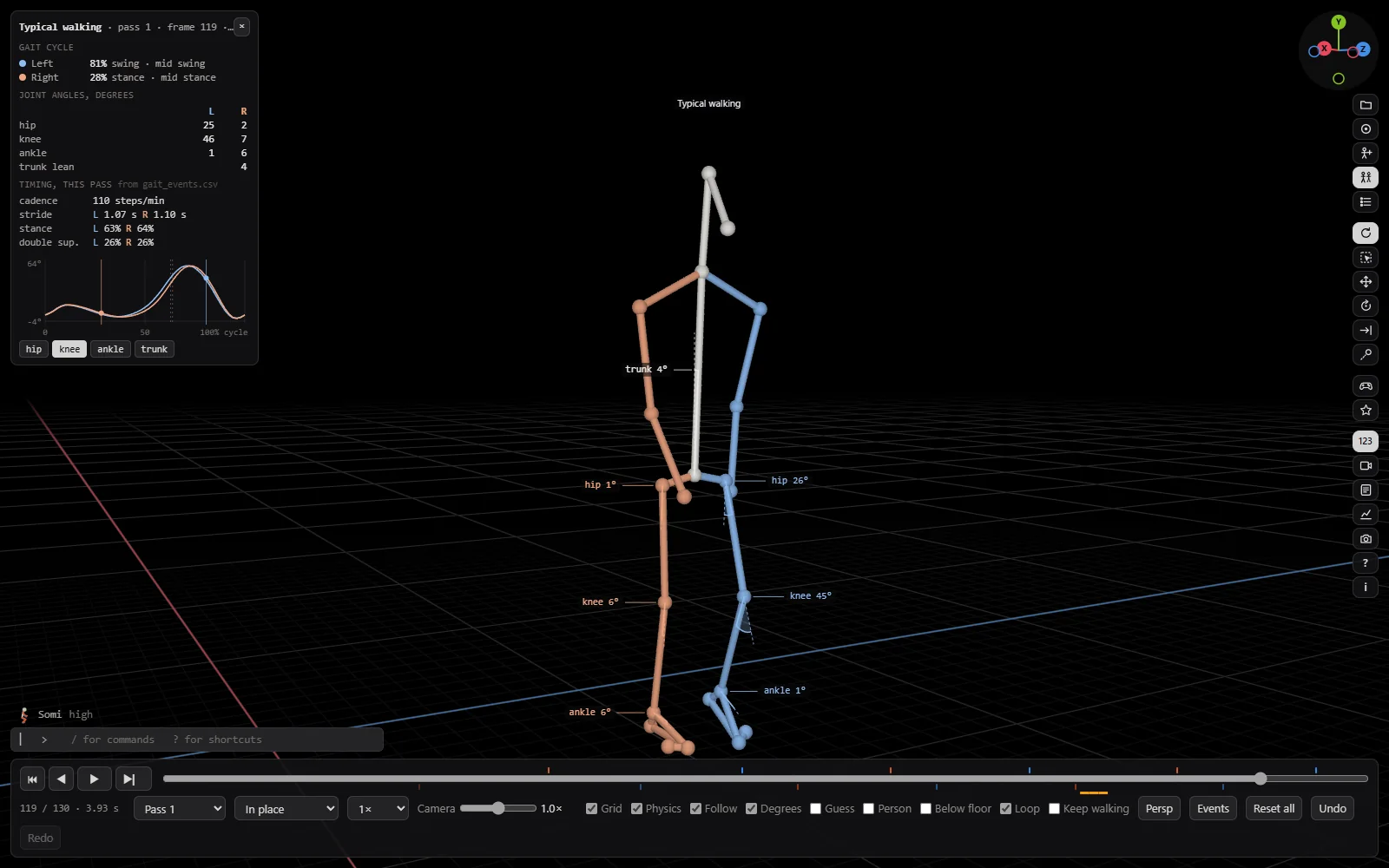
Walkfigure's 3D view: a stick figure labelled Typical walking, mid-stride on a black floor grid, its left limbs blue, its right limbs salmon and its trunk white. At each hip, knee and ankle the joint's angle is written beside it: knee 45 degrees, hip 26 degrees, ankle 1 degree. A column of grey tool buttons runs down the right-hand side, Somi's box sits at the bottom left, and a timeline with playback controls runs along the bottom.
The 3D view, with each joint’s angle at the joint. Every picture on this page is of the program itself, showing typical walkers built from published reference curves — not a recorded person.

From one video.

No markers, no suit, no second camera. One phone, one walk across the picture, and the computer you already have.

01

Film a walk with a phone

Stand side-on to the path and keep the whole body in view. The person walks across the picture. An ordinary phone video is enough. Where a video cannot be measured — nobody in the picture, several people at once, a phone turned on its side, too few strides — it says which of those it found, and what to do about it.
02

It measures, on your computer

It finds and tracks the person, places the keypoints, detects the heel strikes and toe-offs, and works out the angles and the timing. It first shows the height and build it has estimated, beside a frame with the face blurred, and asks whether they look right.

03

Look, compare, report

The walk opens as a 3D figure. Turn it, slow it to a tenth of the speed, step through a frame at a time, jump between heel strike and toe-off, stand a typical walker beside it, ask Somi what a number means, and export a report or the numbers behind it.

What is in it.

Measurements first, then ways of looking at them. Where a part of the program is a sketch rather than a measurement, it says so, and so does this page.

Measurements

What it measures

  • Hip, knee and ankle angles and the trunk’s lean, on every frame.
  • Heel strikes and toe-offs, and where each leg is in its gait cycle.
  • Cadence, stride time, stance and double support.
  • Step length, toe clearance, heel rise and how the foot lands.
  • Every stride in a table, with mean ± SD, variation and left-to-right symmetry.

The angles are the program’s own keypoint geometry, in the side view only. Distances and speeds rest on the height you give it; angles and timing do not.

The numbers panel at the top left of the 3D view, beside the figure. It lists where each leg is in its gait cycle, the hip, knee and ankle angles for left and right, cadence, stride time, stance and double support, and a small chart of the knee angle over the gait cycle with the knee tab selected. The knee at 45 degrees in the table matches the label on the figure's knee.
The numbers panel follows the frame on screen. The knee at 45° in the table is the knee at 45° on the figure.
The 3D view

Angles drawn where they are measured

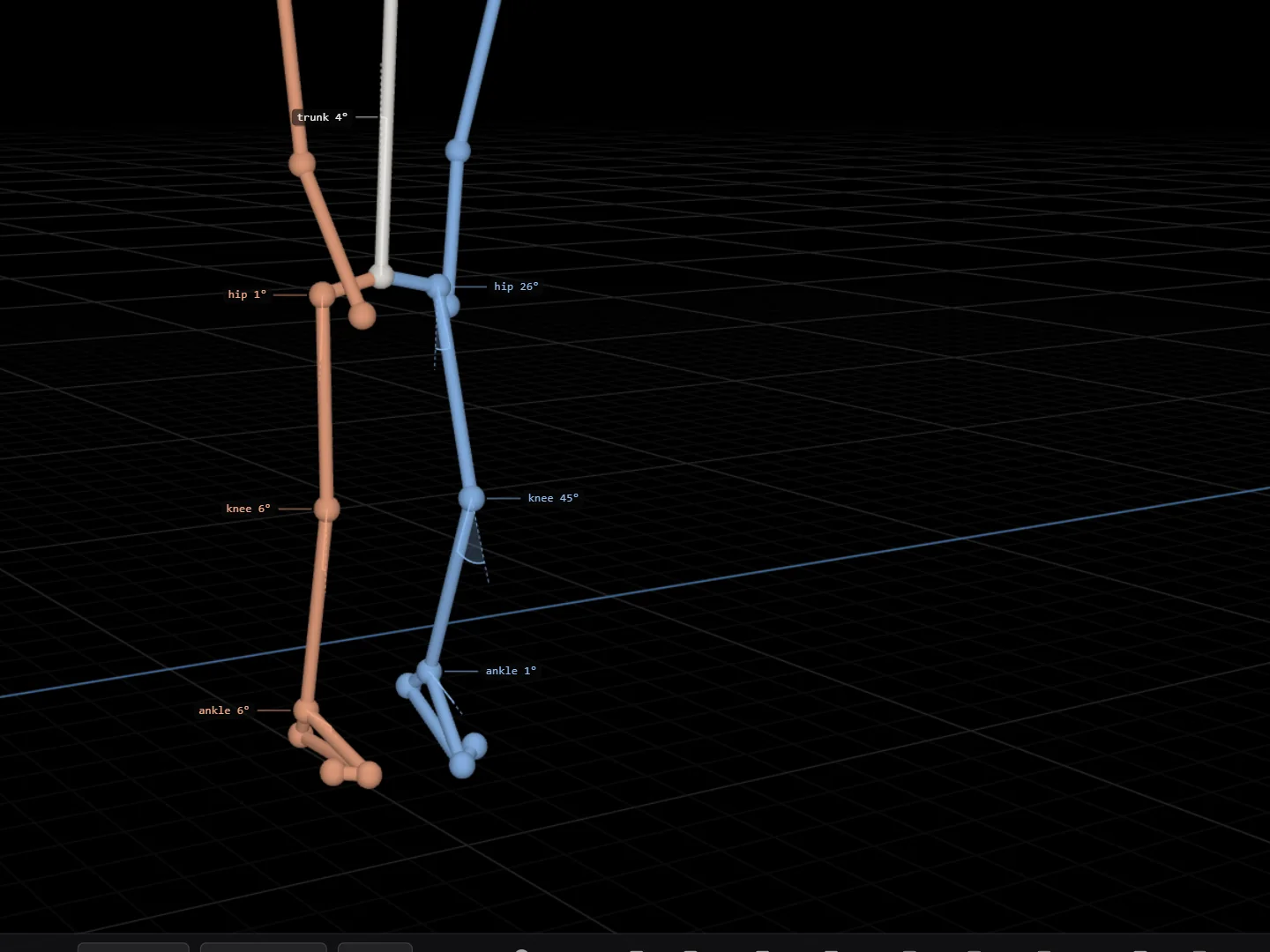
At each hip, knee and ankle lies a wedge in the limb’s colour. It runs from a dashed line, the line the angle is measured from, round to the limb itself, so a knee bent 45° shows 45° of wedge and the number can be checked by eye. The trunk’s lean is drawn the same way, from straight up.

  • Orbit, pan and zoom round the figure, or snap to the side, end-on and top views.
  • Play, pause, slow to a tenth of the speed, or step one frame at a time.
  • Jump from heel strike to toe-off. Correct a detected event by hand, and everything that depends on it follows.
A close view of the figure's hips and legs. At the bent left knee a blue wedge opens from a dashed line to the shank, labelled knee 45 degrees. Smaller wedges mark the right knee at 6 degrees, the left hip at 26 degrees and the ankles at 1 and 6 degrees.
The wedge at the knee is as wide as the number beside it.
Compare

A typical walker to compare with

One button stands a typical walker beside the figure. It is the person’s own size, segment for segment, and its heel strikes fall on the person’s own, so the two are always at the same point of their stride and can be compared joint for joint.

Its hips, knees and ankles follow the mean curves of a published reference group (Lencioni et al. 2019, CC BY 4.0). It is a construction from the averages of a small group. It is not a person and not a goal: nobody walks exactly the mean.

Two stick figures seen from the side, walking in step a little over a metre apart, each with its joint angles labelled. Both are labelled Typical walking.
Side by side and in step. Both figures here are typical walkers; in use, one of the two is the person’s own walk.
Analysis

Curves over the gait cycle

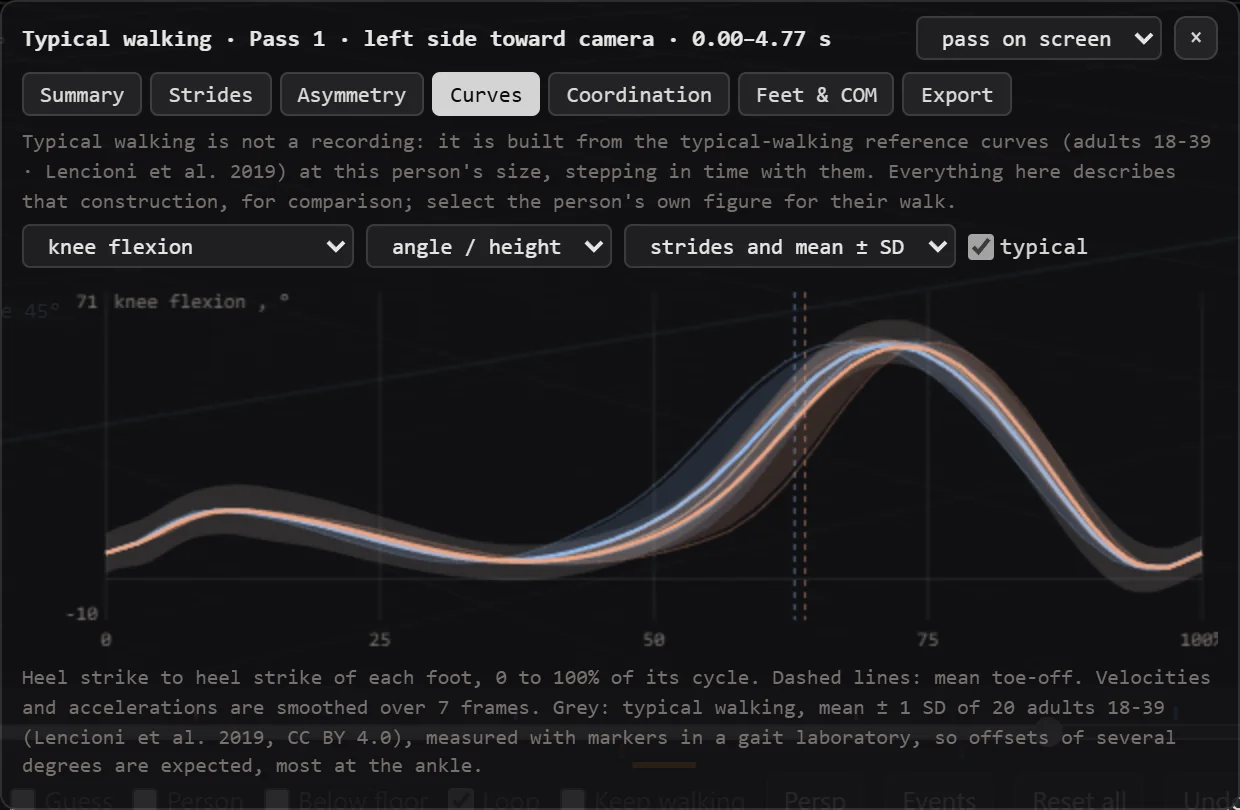
Any joint or segment angle from heel strike to heel strike: each stride, their mean ± SD, or both, with toe-off marked. Typical walking sits behind the hip, knee and ankle as a grey band, and the panel says under the chart what the band is and where it came from.

The reference was measured with skin markers in gait laboratories, so offsets of several degrees from keypoint angles are expected, most at the ankle.

The analysis panel on its Curves tab: knee flexion over the gait cycle for the left and right legs, drawn over a grey band of typical walking, with dashed lines at toe-off. A note above the chart says the figure is built from reference curves and is not a recording.
The Curves tab, here for a typical walker, which is why the lines sit in the middle of the band.
The assistant

Somi reads the numbers with you.

The small grey box at the bottom left of the 3D view is Somi, Walkfigure’s assistant. Ask it to measure an angle, explain a number, or set up the scene — place figures, change how they look, move the camera, run the physics — in plain words, and it does it on this walk and this scene.

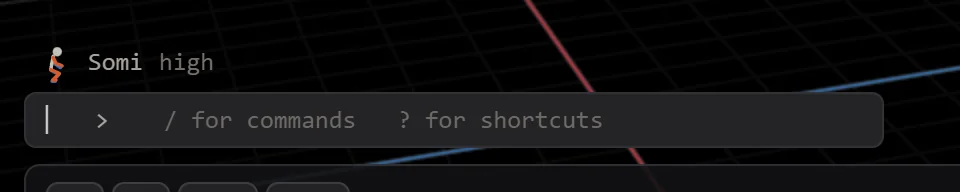
Somi's box at the bottom left of the view: a small walking-figure icon, the name Somi, the word high for its effort setting, and a one-line prompt reading: slash for commands, question mark for shortcuts.
Somi’s box. / lists its commands, ? the keyboard shortcuts.
  • It reads what the program measuredThe gait summary, the per-stride table, the asymmetries and the curves are its sources, the same numbers the panels show, so what it says can be checked against what is on screen.
  • It builds its own toolsAsked for something the program has no button for — a measurement between two joints, a per-frame effect, a camera move — Somi writes a small tool in JavaScript, tests it, fixes it from the error it gets back, and uses it, in the same answer. You can list, read and remove the tools it has built, or stop it building more.
  • Every change is one stepWhatever Somi changes in the scene is one step of the same undo history as your own changes, so nothing it does is hard to take back.
  • It stays in its laneSomi works only on this walk and this scene, and it is told never to build a tool to get round that. It does not diagnose, and it does not recommend treatment.
  • It costs you nothing, and asks for nothingNo account, no sign-in, no API key: Somi just answers. What is behind it is a daily allowance we pay for and everyone using Walkfigure shares, so on a busy day Somi can run out and say so until the next one. Nothing else in Walkfigure is affected, and anyone who would rather not wait can put in a free key of their own with /key and have an allowance to themselves.
  • The one thing that leaves the machineSomi’s answers come from a language model that is not on your computer. What you ask it — and the gait numbers and scene details it looks up to answer — goes to a service we run and on to Cloudflare’s models. That service reads only which model to use and how long the answer may be; it does not log or store your messages, and we keep no record of them. Cloudflare handles what it receives under its own terms. Everything else in Walkfigure stays on the computer. Where that is not acceptable for the people you film, leave Somi alone — the rest works without it. The privacy policy sets this out in full.
Play

Play, and a kids’ mode

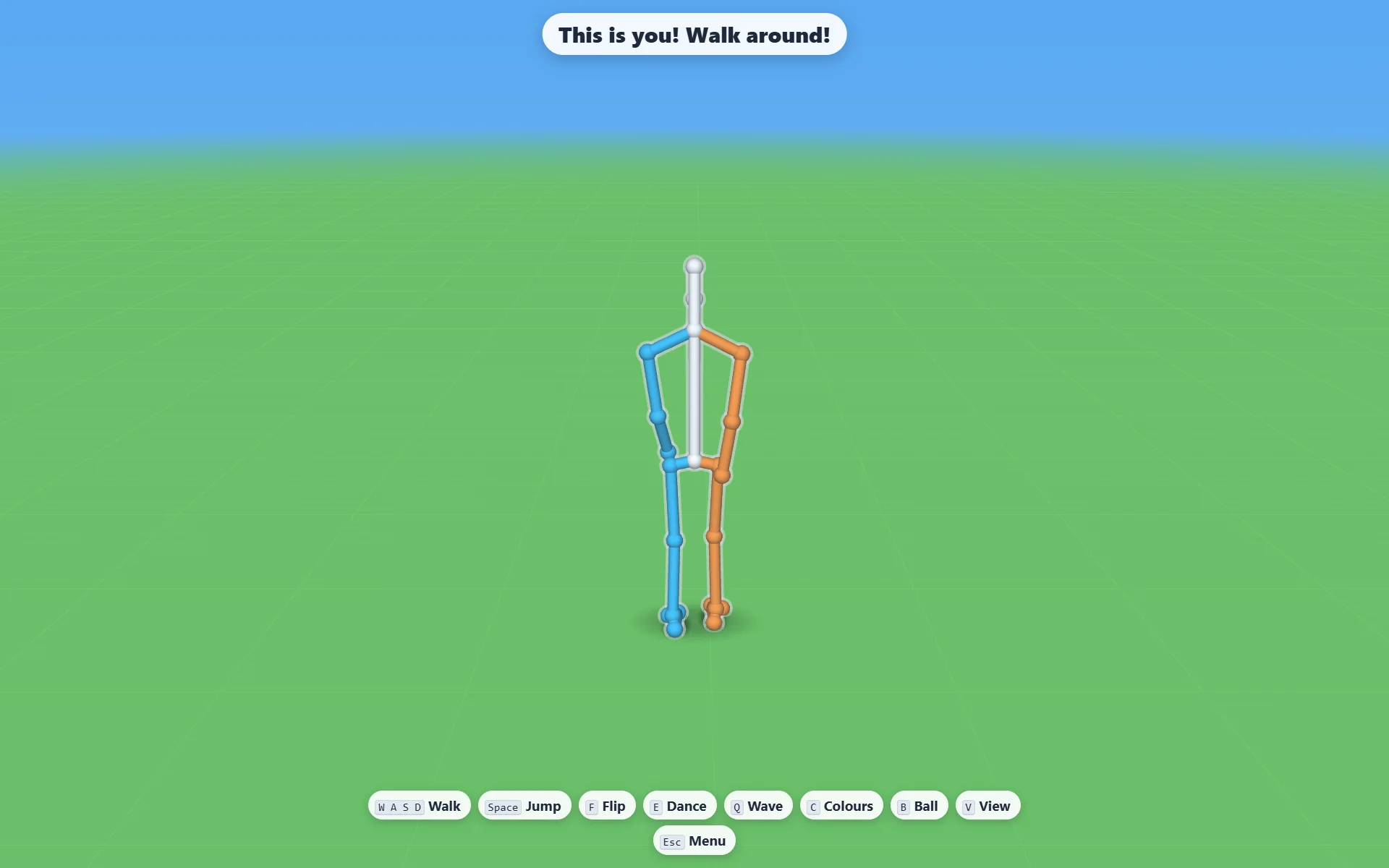
Play lets you walk the figure about yourself, with W A S D or an Xbox controller, on its own recorded stride. It can jump, wave and dance, and nothing it does is kept.

Kids’ mode is for a gait laboratory. A child sees the figure that is their own walk, brightly coloured under a sky on grass, and plays with it as they would a video game. Everything clinical is put away, nothing they do is saved, and leaving takes a grown-up’s held press.

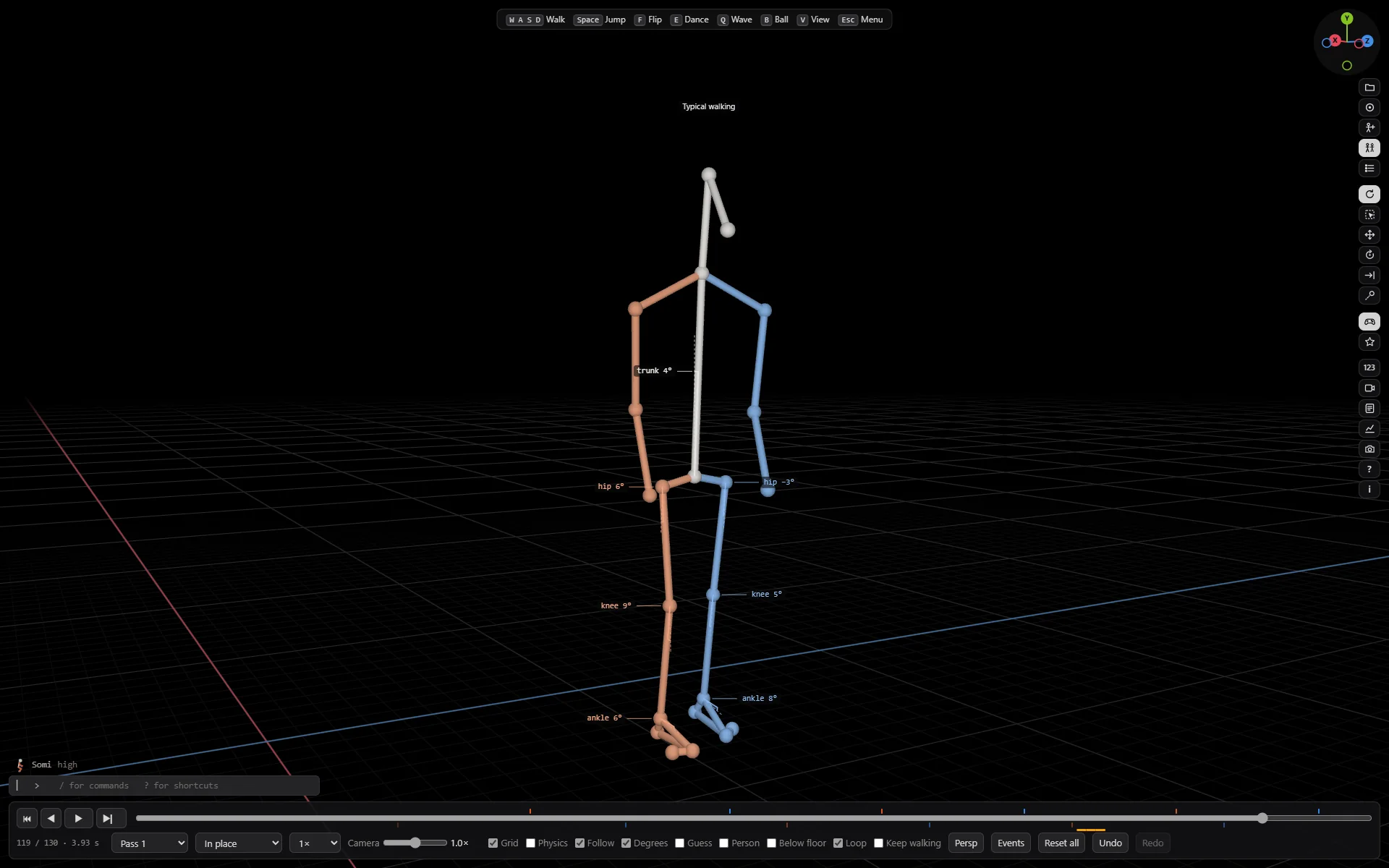
Play: the figure walks across the dark scene under the keyboard, with its joint angles still drawn. A bar along the top names the keys: W A S D to walk, Space to jump, F to flip, E to dance, Q to wave, B for a ball, V for the view, Esc for the menu.
Play, with its keys along the top.
Kids' mode: a chunky stick figure in bright blue, orange and white stands on green grass under a blue sky. A greeting at the top reads: This is you! Walk around! A row of large buttons along the bottom names the keys for walk, jump, flip, dance, wave, colours, ball and view, and Esc for the menu.
Kids’ mode.
01

The video, with faces blurred

The recording plays beside the 3D view, held to the same frame, with the skeleton drawn over it. Faces are blurred unless you untick it, and a clip recorded from the panel is blurred too. Measure a length or an angle on the picture.

02

A physics sandbox

Push a figure, throw a ball at it, or put a box or a slippery patch in its path. It staggers, catches itself with a step or goes down, and a fall report says what happened and when. It is a physics sketch, not a model of the person — for exploring and explaining, never for estimating anyone’s risk of falling.

03

Reports, exports, and a local API

A report as PDF or HTML with the caveats on its first page; CSV of every frame, of the strides and of the summary; the motion as BVH for animation tools; a clip or a snapshot of the view. A REST service on the same machine, with SDKs for Python and JavaScript, runs the same analysis for other programs.

Who it is for.

People who look at walking and have to explain what they see. It is a tool for looking and explaining, not for deciding what is wrong with someone.

01

Gait laboratories

Something to show the person who has just been measured: their own walk as a figure they can turn round, beside a typical walker. Kids’ mode is for the child who would rather play than look at curves.

02

Physiotherapists

A way to look at a walk with the person in the room. Slow it down, turn it, point at the knee, and keep each walk as a project to look back on.

03

Research and teaching

Frame-by-frame CSV, per-stride tables, BVH motion and a local API. For teaching, a figure that students can step through, measure, and push over.

Private by design.

A video of someone walking is a video of a person. The analysis happens where the video already is.

01

Nothing is uploaded

The analysis runs on your computer. There is no cloud service behind it, the engine needs no internet connection, and in a checked run it made none.

02

Projects stay in a folder

Each project is a folder on your own machine. A video can be taken away and the analysis kept, and a deleted project goes to the Recycle Bin.

03

Faces blurred, names yours

Faces are blurred in the video panel, in a recorded clip and on each project’s card. Walkfigure never works out who is in a video: a project carries a person’s name only if you type one.

The one exception is Somi, and it is stated plainly above: what you ask it, and the numbers it looks up to answer, go to the model provider. Leave Somi alone and nothing leaves the machine.

What it is not.

The program says what it measures and what it fills in. So should this page. Walkfigure is research software in beta: it is not a medical device, it does not diagnose or recommend treatment, and its numbers are estimates to check rather than measurements to rely on.

  • One camera, one sideEvery angle is measured in the side view only. Depth is not measured: the figure is a flat tracing of that view, with its two sides pulled apart by fixed amounts.
  • Keypoints, not markersThe angles come from keypoints a pose model finds in the picture. They are not a laboratory’s marker angles and can differ from them by several degrees, most at the ankle.
  • Distances rest on a heightHeight can only be guessed from one video, so enter the real one where it is known. Every distance and speed rests on it. Angles and timing do not.
  • Some things are filled inEach body segment is given one length for the whole recording. Where tracking fails, a segment’s direction is filled in from the frames around it, or those frames are left out.
  • A few stridesA short video holds a few strides, and averages and variability from so few are a rough guide. The program says how many each number rests on.
  • In betaIt is still changing, and it will be wrong sometimes. Check what it tells you against what you can see in the video.

Requirements.

One setup file, installed for one Windows user. It downloads nothing while it installs, and it needs no administrator.

  • SystemWindows 10 or Windows 11, 64-bit.
  • WebView2 runtimePart of Windows 11. On Windows 10 it may need installing from Microsoft, and setup says so if it is missing.
  • Disk spaceAbout 1.2 GB. The setup file itself is 407 MB.
  • RightsNo administrator rights needed.
  • PythonNone needed. The analysis engine comes with the program.
  • InternetNot needed for the analysis. Only Somi uses it.
  • VideoAn ordinary phone video of a walk seen from the side, with the whole body in view.

Free to download.

Free no account, no licence key

One setup file for Windows. Everything on this page is in it: the measurements, the 3D view, the comparison, Somi, Play and kids’ mode. There is nothing to buy, nothing to sign in to, and no part of it that is held back.

Using it in a clinic, or want it on a walk of your own first? Write to contact@mgam.bio.

Download for Windows

Version 1.1.69, 407 MB. Windows 10 or 11, 64-bit.

Before you run it.

Walkfigure is not code-signed, so Windows will warn you the first time: a blue “Windows protected your PC” box. That warning means Windows does not recognise the publisher — not that anything is wrong with the file. To run it anyway, choose More info, then Run anyway.

If you would rather check the file first, its SHA-256 is below. In PowerShell, Get-FileHash WalkfigureSetup.exe should print the same string.

  • WalkfigureSetup.exe, version 1.1.69706cb44e99efdbab475ea9348b468f13093dfada83a5194f59a391da65280e52

Citing Walkfigure.

Walkfigure is archived on Zenodo and has a DOI of its own. If it did any of the work behind something you publish, cite it — and cite the work it stands on.

  • WalkfigureChnani, M. (2026). Walkfigure [Computer software]. MGAM LLC. https://doi.org/10.5281/zenodo.22837820
  • Which DOI10.5281/zenodo.22837820 always resolves to the newest version, and is the one to cite unless you need to name the exact version you ran — every release has a DOI of its own on the Zenodo record.
  • Please also citeSports2D, whose pose stage Walkfigure’s engine is built from: Pagnon, D. (2024). Journal of Open Source Software, doi:10.21105/joss.06849. And Lencioni et al. (2019), the published dataset the typical walker’s curves are built from.

Questions, or a demonstration

To see it on a walk of your own, or to ask anything about it, write to us and say what you would use it for.

contact@mgam.bio